Everything in your notebooks, moved with care
What happens to your notes, where they land in Google, and how you stay in control of the move.
Everything you wrote, where you'd expect it
Every page becomes a Google Doc, with its formatting, pictures and files, in OneNote's order.
Notebooks, sections and pages
A folder per notebook in My Drive or a shared drive, and a Doc for each page.
Subpages stay with their page
Each subpage becomes a tab inside its page's Google Doc.
Text and formatting
Headings, bold, highlights, colours, lists and code carry over into the Google Doc.
Tables and checklists
Real Google Docs tables. To-dos become Google Docs checklist items.
Pictures and equations
Pictures sit inside the Google Doc. Equations arrive there as pictures.
Attached files and audio
Saved in My Drive or a shared drive, linked from inside your Google Doc.
Links between pages
A link to another OneNote page now opens that page's Google Doc.
Tags and emoji
Important, Question and Idea tags become ⭐ ❓ 💡 at the start of the line.
Online videos
A YouTube or other online video on a page becomes a link to watch it.
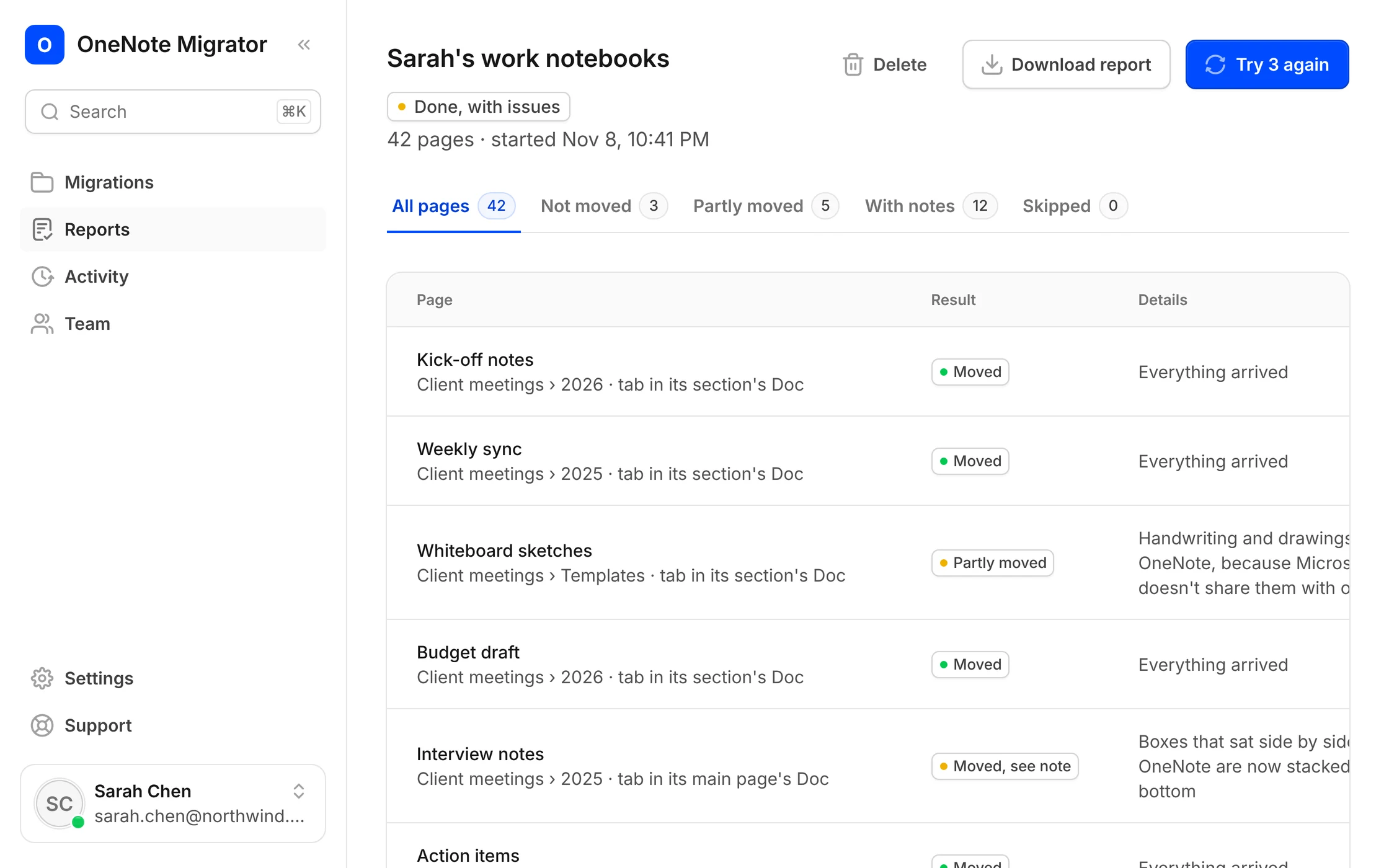
Handwriting and drawings stay in OneNote, because Microsoft doesn't share them with other apps.
Organise it the way you work
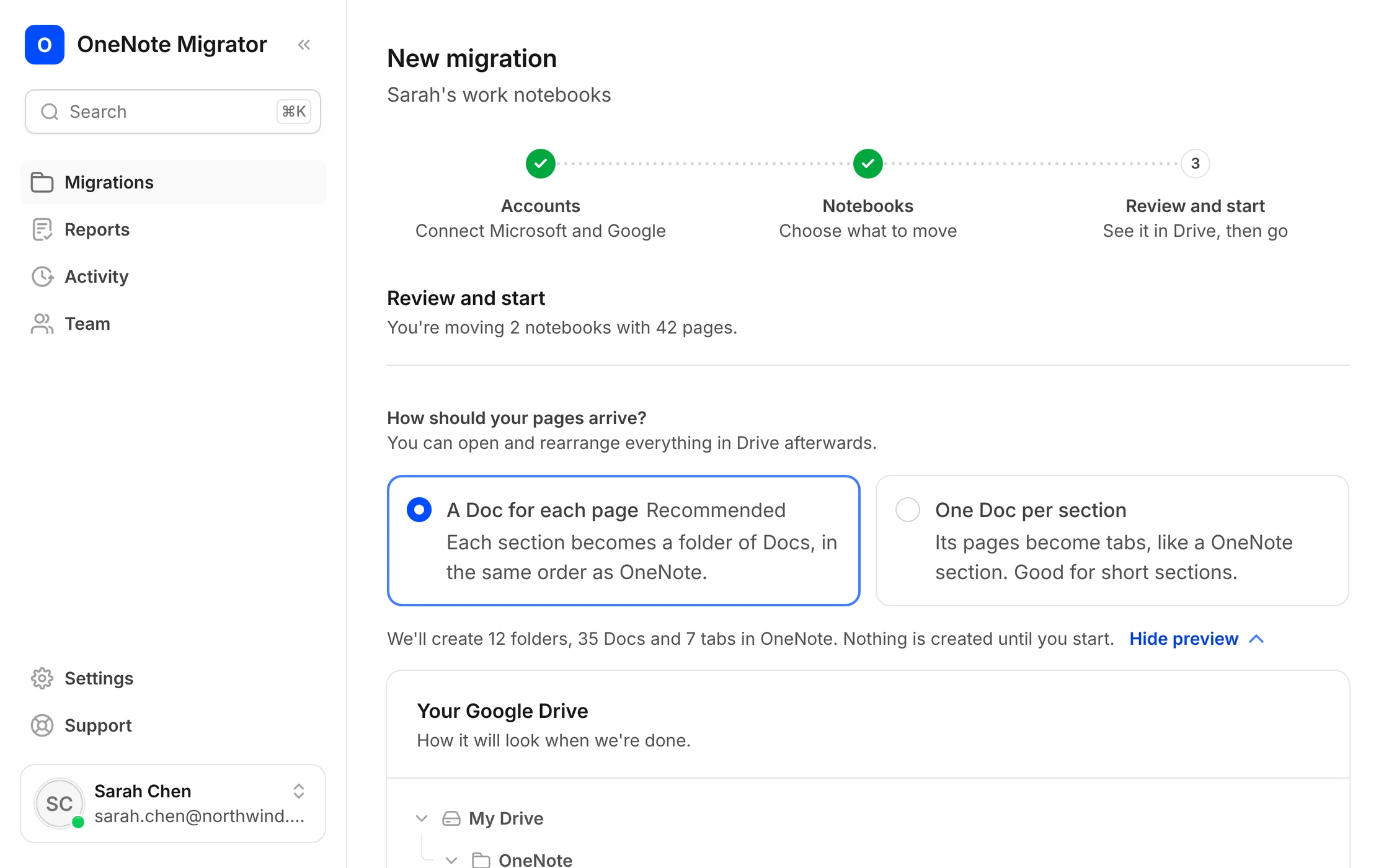
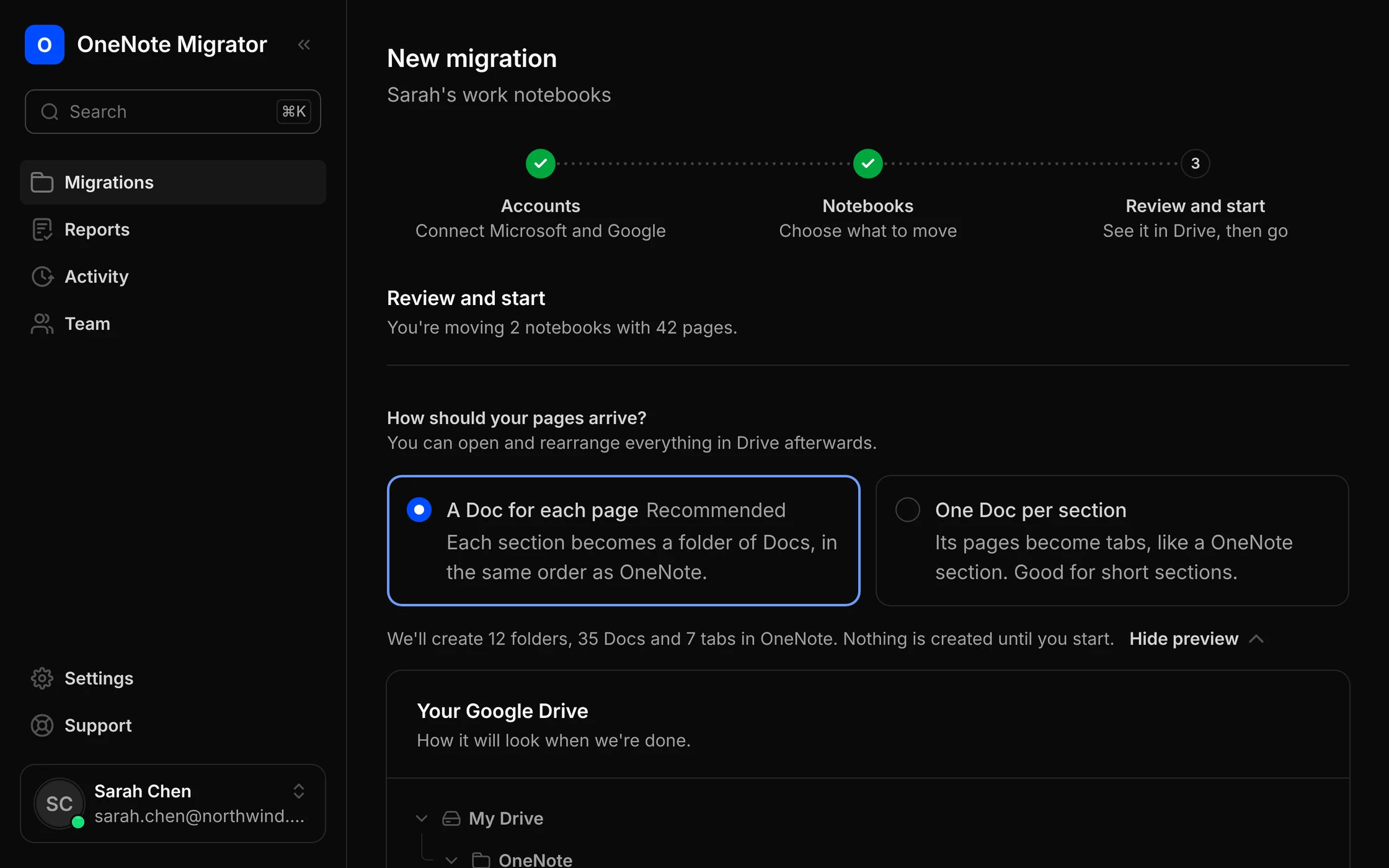
Choose how your notebooks arrive in Google Drive, and see a preview before anything is made.
A Doc for each page
Each section becomes a folder of Docs, numbered so Drive keeps OneNote's order.
One Doc per section
A section's pages become tabs in one Doc, like a OneNote section. Good for short sections.
Subpages your way
Keep a subpage as a tab inside its page's Doc, or give it a Doc of its own.
Any folder you choose
Put everything in My Drive or in a folder inside a shared drive.
No surprises, from the first click to the last page
You see what will happen before it happens, and proof that it did afterwards.
Before: see the result
A preview of every folder and Doc, before a single file is made.
During: get on with your day
It runs in the background. If anything interrupts it, it picks up where it left off.
After: proof it all arrived
A page-by-page report shows what arrived, and points you to anything worth a second look.
A move you can leave running
Big notebooks take time. You don't have to watch them.
Runs in the background
Close the page. The move carries on and picks up after any interruption.
Never copies twice
Every file is tagged, so trying again never makes duplicates in your Drive.
Pause or cancel
Pause at a safe point, or cancel and keep everything that has already moved.
Every page checked
After each page moves, we check its words arrived in the Google Doc.
Try again in one click
If a page doesn't arrive, the report says why. Retry just those pages.
Download the report
Keep a spreadsheet of every page and its result for your records.
What stays in OneNote
A few things can't move, and we tell you before you start, not halfway through.
Handwriting and drawings
Microsoft doesn't share ink with other apps. Everything else on the page moves.
Password-protected sections
We can't open them. They're left out and named in your preview and report.
Boxes placed side by side
Google Docs has no free placement, so they're stacked one under another.
Very large pictures
Pictures over 4 MB, or in formats Docs can't show, go to Drive with a link.
Team-site notebooks
Notebooks on SharePoint team sites or in Microsoft 365 groups aren't supported yet.
Version history and sharing
Older versions and who a page was shared with stay in OneNote.
Questions about features
What arrives, how it looks, and what you control.
Very close. Headings, text styles, colours, lists, tables, checklists and pictures carry over. OneNote's free placement becomes a normal top-to-bottom page.
A Doc for each page suits long notes. One Doc per section, with pages as tabs, suits sections of short pages. The preview shows both before anything is made.
Once every page has moved, they're pointed at the new Google Docs, so they open in Google, not OneNote.
Yes. Tick the notebooks you want. You can move the rest later, and pages already moved are skipped.
Into an Assets folder next to the notebook's Docs in Google Drive, with a link to each file inside the page's Google Doc.
Bring your OneNote with you to Google
Sign in with Google, connect OneNote, and see how your notebooks will look before anything moves.